Mastering the Click Button: A Practical Guide to Web UI Interaction and Asset Integration
In the modern digital landscape, the click button is far more than a simple graphical element; it is the primary conduit for user intent and system response. Whether you are designing a landing page, prototyping a mobile application, or curating a library of assets for a design team, understanding the nuances of button interaction is critical. The visual cue of a cursor pointer transforming into a pointing hand signals readiness, inviting the user to engage. This seemingly minor transition is the cornerstone of intuitive web navigation. For professionals ranging from marketers to software developers, the implementation of these elements dictates the flow of conversion funnels and the overall usability of a product.
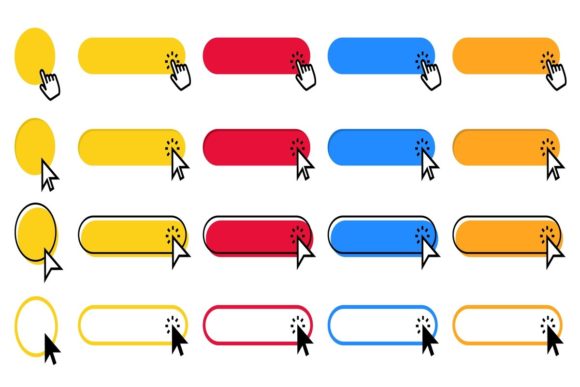
When we discuss the click button in the context of digital assets, we are often referring to the isolated vector icons that represent this action. These assets are essential for creating consistent, high-quality user interfaces (UI). A well-designed set of button icons allows creators to maintain visual harmony across platforms. However, integrating these assets requires more than just dragging and dropping files. It demands an understanding of file formats, scalability, and the technical requirements of web deployment. By treating the click button as a functional component of a broader workflow, designers and developers can ensure that their projects are not only aesthetically pleasing but also technically robust.
The Role of Vector Assets in UI Consistency
Consistency is the hallmark of professional web design. When a user encounters a website button, they expect a certain level of visual fidelity and behavioral predictability. This is where vector isolated icons become invaluable. Unlike raster images, which can pixelate when scaled, vector graphics remain crisp at any size. This scalability is crucial for responsive design, where a button must look sharp on a high-resolution retina display as well as a standard desktop monitor.
A typical product file for these assets includes multiple formats to accommodate different stages of the design and development process. For instance, having access to an EPS10 file allows designers to edit the core geometry of the button using vector editors like Adobe Illustrator. This format is ideal for the initial customization phase, where you might need to adjust the curvature of the corners, modify the stroke weight, or change the color palette to match brand guidelines. The ability to separate elements within the vector file means that you can isolate the pointing hand cursor from the button background, allowing for dynamic animations or state changes.
On the other hand, the inclusion of a JPEG 72ppi file serves a different purpose. This raster format is optimized for quick previews, mockups, or immediate use in presentations where editing is not required. While it lacks the flexibility of the vector format, its small file size and universal compatibility make it a practical choice for rapid prototyping or stakeholder reviews. Understanding when to use each format is a key skill in efficient workflow management. Using a JPEG for final production code is a common mistake that leads to blurry interfaces on high-density screens, whereas using an EPS in a web environment without proper conversion can lead to bloated load times.
Integrating Click Buttons into Your Design Workflow
The integration of click button assets into a project should be viewed as a structured process rather than an afterthought. Before you begin implementing these elements, it is essential to assess the specific needs of your project. Are you building a static informational site, or a complex web application with numerous interactive states? The answer will determine how you organize and prepare your assets.
Preparation begins with organization. When you download a set of vector isolated icons, the first step should be to catalog them within your design system. Create a dedicated folder structure that separates source files (EPS) from export-ready assets (SVG, PNG, JPEG). This practice ensures that your team can quickly locate the correct file type without sifting through irrelevant data. Furthermore, establishing naming conventions early on prevents confusion during the handoff between design and development teams. For example, labeling files as btn-primary-hover or cursor-pointer-active provides immediate context about the asset’s function.
During the design phase, utilize the vector editor to customize the color web UI buttons to align with your accessibility standards. Contrast ratios are vital for ensuring that buttons are visible to all users, including those with visual impairments. By editing the vector paths, you can fine-tune the saturation and brightness of the button colors to meet WCAG (Web Content Accessibility Guidelines) compliance. This step is often overlooked in rapid development cycles but is crucial for long-term usability and legal compliance.
Compatibility is another significant factor. While EPS10 is a widely supported vector format, modern web development increasingly favors SVG (Scalable Vector Graphics) for inline code implementation. Therefore, part of your workflow should involve converting the edited EPS files into optimized SVGs. This conversion allows for CSS styling and JavaScript interactivity, enabling features such as hover effects, transitions, and animated cursor changes. The pointing hand cursor, for instance, can be triggered via CSS pseudo-classes, but having the vector asset allows for custom cursor designs that enhance brand identity.
Practical Implementation and Quality Control
Once the assets are prepared, the focus shifts to implementation. In a real-world scenario, a web click bar or a series of call-to-action buttons must perform consistently across different browsers and devices. Testing is an indispensable part of this phase. Verify that the clicking pointer appears correctly when hovering over the button area. Ensure that the active state (when the button is clicked) provides immediate visual feedback, such as a slight depression or color shift. These micro-interactions confirm to the user that their action has been registered.
Quality control extends beyond visual appearance. It involves checking the file sizes and load performance. Even though vector files are generally lightweight, poorly optimized paths can increase rendering time. Use tools to minify SVG code and remove unnecessary metadata from the original EPS files. This optimization contributes to faster page load speeds, which is a critical factor for SEO and user retention. A slow-loading button can disrupt the user journey, leading to higher bounce rates and lower conversion rates.
Moreover, consider the long-term maintenance of these assets. As your brand evolves, you may need to update the style of your website button elements. Having the original editable vector files ensures that you can make these changes efficiently without having to recreate the icons from scratch. This forward-thinking approach saves time and resources in the future, allowing your design system to scale alongside your business.
Enhancing User Experience Through Visual Cues
The psychological impact of a cursor pointer clicking on buttons should not be underestimated. The transformation of the cursor into a pointing hand is a universal signal of interactivity. It reduces cognitive load by clearly indicating which elements are actionable. When designing these cues, consistency is key. If some buttons trigger the hand cursor while others do not, users may become confused about what is clickable. Standardizing this behavior across your entire interface creates a seamless and intuitive experience.
Additionally, the design of the button itself plays a role in guiding user behavior. Color, shape, and size all contribute to the hierarchy of information. Primary actions should be visually distinct from secondary actions. By using the vector assets to create variations in style, you can establish a clear visual language that guides users through your desired workflow. For example, a bright, saturated color might indicate a "Submit" action, while a muted tone might represent a "Cancel" option.
In conclusion, the click button is a fundamental element of digital interaction that requires careful consideration and strategic implementation. By leveraging high-quality vector assets, maintaining organized workflows, and prioritizing usability and accessibility, professionals can create interfaces that are both functional and engaging. Whether you are a freelancer designing a portfolio or an enterprise updating a complex platform, treating these elements with precision will yield better outcomes and a more polished final product. The integration of these assets is not just a technical task but a strategic decision that impacts the overall success of your digital presence.